
Download the Chiropractic Connection
Mobile App


Installation Instructions
Click Install
You will be asked “Allow Chiropractic Connection to send you notifications”
Select “Allow” to ensure that you receive appointment reminders and practice updates.Follow the Sign up steps
- Enter your email address. It will be the precise one held on file by our practice, so please contact us directly if you've forgotten which one you used.
- Create a secure password and re-enter the password to confirm.
- Click “Sign up”Verify your email - open the “Verify your email address” email that you received from us and click the link to verify your email address.
If for any reason you don’t receive the email, please check your spam folder first before clicking the “Resend verification email” button on the app as a second resort. If you are still experiencing issues please don't hesitate to get in touch.Your account is now ready to go! Next time you open the app you will be able to enter your email address, password and start exploring!
App Features and Instructions
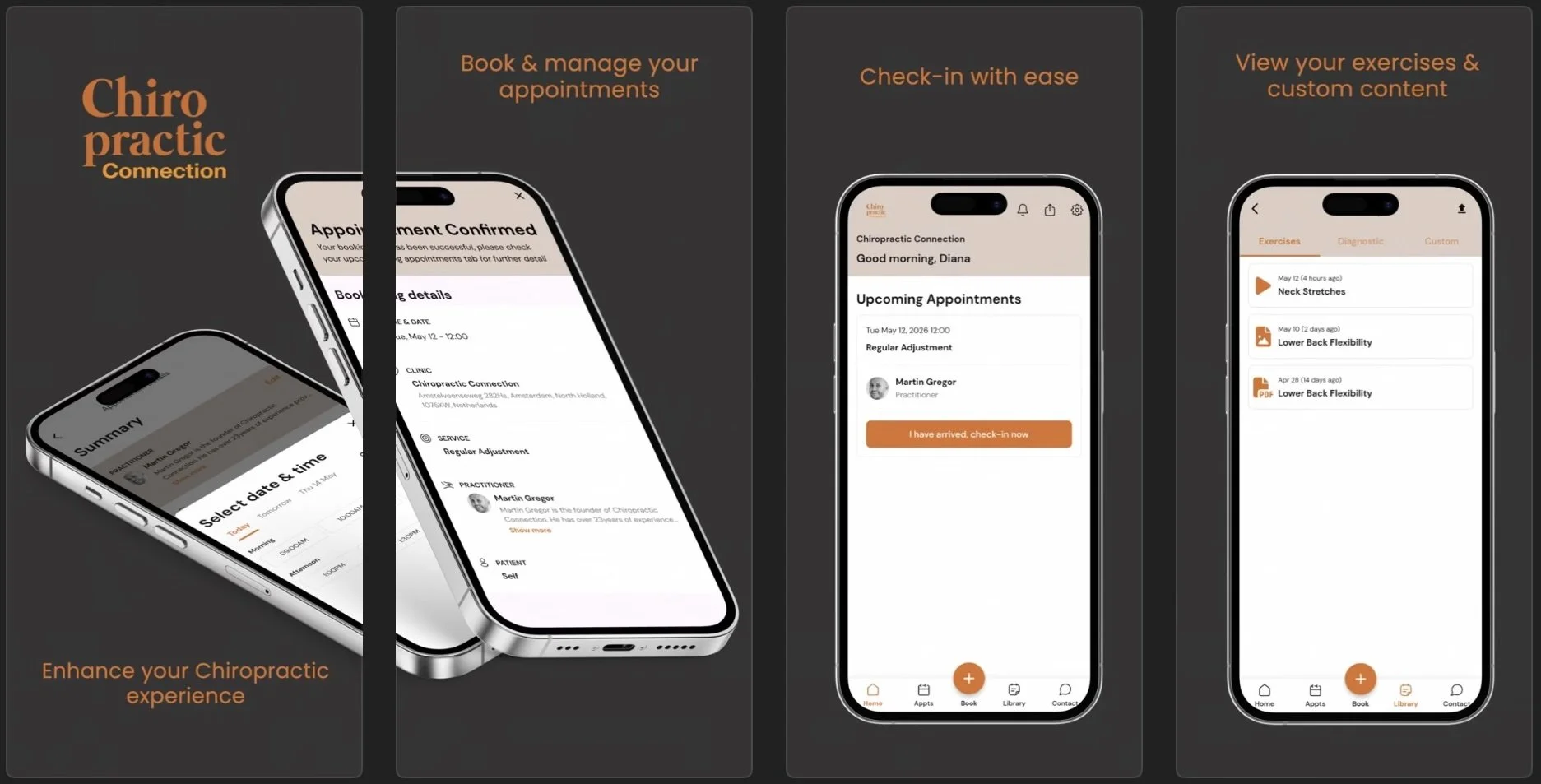
App Homepage: When you launch the App, you’ll see our practice details and any scheduled appointments. The navigation bar at the bottom provides quick access to essential sections: “Home,” “Appts,” “Book,” “Content,” and “Contact.” At the top you can see settings, notifications, and a button to share a refer a friend QR code or link.
Upcoming Appointments: Stay organised by viewing all of your upcoming appointments in one place.
Check-in: Effortlessly check in when you arrive in the practice by navigating to today’s appointment and clicking “I have arrived, check-in now.”
Historical Appointments: Access your past appointments with ease. Select the Appts button from the navigation bar and then the “Historical” tab. Review when they were, their status (“missed,” “completed,” or “pending”) and which practitioner you saw.
How to Book an Appointment: Schedule an appointment in a matter of seconds. Simply click the “+” icon, choose the type of appointment you need, select your preferred practitioner (or “No preference”) and browse available dates and times. Once you’ve found the perfect slot, confirm your booking with a click. Note that you can book multiple appointments at the same time if you wish- simply repeat the above steps until you’ve selected all your desired appointments before confirming.
How to Reschedule an Appointment: Life can get busy, and plans might change. Should you need to reschedule an appointment, there’s no need to worry! Navigate to the “Appts” section of the app, find the appointment you want to change and click “Reschedule,”.
Content: Your practitioner has the ability to share bespoke content with you via the app. Explore the various tabs to access personalised exercises, diagnostic images and other customised content.
Settings:
- Tailor the app to your preferences: switch between a light and dark theme, select a preferred language and manage your profile information.
- You can also setup Auto Sync Calendar with your preferred online Calendar.- Profile: update your contact details or address
- Purchase a package, select the payment methods option to choose from iDeal or add payment card.